


My Cobalt Image for my Class

Thread Starter
Senior Member
Joined: 06-28-05
Posts: 4,194
Likes: 0
From: Wilmington, DE
My Cobalt Image for my Class
I am currently taking a Photoshop class as an elective at my college. I have worked my fair share in the program before but this class took me to another level.
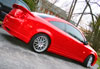
This is the original Image:

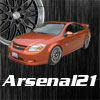
The only image I used in this was my original image of my car. Everything else was completely and entirely made from photoshop, including the space image, text effects, lightning, etc....

What do you think?
I also have a full size 2560x1920 PNG file if anybody wants a copy.
This is the original Image:
The only image I used in this was my original image of my car. Everything else was completely and entirely made from photoshop, including the space image, text effects, lightning, etc....
What do you think?
I also have a full size 2560x1920 PNG file if anybody wants a copy.


Senior Member
Joined: 09-14-05
Posts: 6,697
Likes: 0
From: Phx, AZ
cool beans cept next time use the magnet lasso or the regular point to point lasso instead of the magic wand ... if you can ... get a hold of knockout ... kinda hard to use but the results are incredible.
Thread Starter
Senior Member
Joined: 06-28-05
Posts: 4,194
Likes: 0
From: Wilmington, DE
Originally Posted by OniMirage
cool beans cept next time use the magnet lasso or the regular point to point lasso instead of the magic wand ... if you can ... get a hold of knockout ... kinda hard to use but the results are incredible.
Senior Member
Joined: 09-14-05
Posts: 6,697
Likes: 0
From: Phx, AZ
Originally Posted by Mercury
I didn't use the magic wand.... The magnet lasso sucks because it can jump off your image. I used the polygonal lasso
Thread Starter
Senior Member
Joined: 06-28-05
Posts: 4,194
Likes: 0
From: Wilmington, DE
Yeah... I am sure lol, I never use the magic wand, that thing higlights everything. I do notice what u are talking about though. I was thinking about adding a featherd glow to the car, but I need to learn how to do the glow first.
Senior Member
Joined: 12-10-04
Posts: 1,206
Likes: 0
From: Cleveland, OH
Not bad for a beginner. Your original image is over exposed it can be adjusted with the levels tool or curves tool. I wouldn't put the brightest part of that background near the front end of the car it's way too blasted out. 

Senior Member
Joined: 09-14-05
Posts: 6,697
Likes: 0
From: Phx, AZ
create a new layer under the lightning then simply select the layer with the lightning affects then go to the Selection menu ... go to modify and select expand and expand it by like say 2 pixels the go back to selection and go to feather and select something small like 3 pixels ... fill your selection with a light color like a light blue color at maybe 20% opacity in the new layer ... go to your layer affects then add a glow filter but don't make it too big ... once done go to the layer properties and find the profile that will work best ... I was thinking color dodge but my friend thinks a multiply would work good ... once you have your selection done reduce the layer opacity to like 50%
360 L337 User
Joined: 08-11-05
Posts: 7,454
Likes: 0
From: Philadelphia, Pa
nah for real it looks good to me. I can also see the choppyness around the roof and wing, but I can't do any better. I just got Photoshop CS and am starting to play with it just a bit. Hopefully I will learn everything OniMirage is talking about some day
Senior Member
Joined: 09-14-05
Posts: 6,697
Likes: 0
From: Phx, AZ
lol not hard stuff really but in high school I had a bunch of friends tell me I should publish a book on photoshop but I have been outa the game for such a long time but it's coming back to me
EDIT it's all about layers when using photoshop ... this doesn't mean the more the better but less mistakes can be made if you have more layers and more affects can be done using different sections of the image
EDIT it's all about layers when using photoshop ... this doesn't mean the more the better but less mistakes can be made if you have more layers and more affects can be done using different sections of the image


Senior Member
Joined: 09-14-05
Posts: 6,697
Likes: 0
From: Phx, AZ
Originally Posted by Mercury
Lol I have like 12 layers on that image.... Not including the layers I merged... 


Senior Member
Joined: 03-16-05
Posts: 2,335
Likes: 0
From: Rochester, NY
i do a fair share of photoshopping, and i use the polygonal lasso for everything
for glow, you should select the car, copy to a new layer
right click on blending options, go to outer glow, and play with it from there
for glow, you should select the car, copy to a new layer
right click on blending options, go to outer glow, and play with it from there

Thread
Thread Starter
Forum
Replies
Last Post
royce777
Parts
27
Sep 28, 2015 07:11 AM